Color Splash Effect Online — Keep One Color, Turn Rest B&W (Free)
Create color splash effect online free. Keep one color (red, blue, green), turn rest of photo black & white. No upload, instant, trending effect.
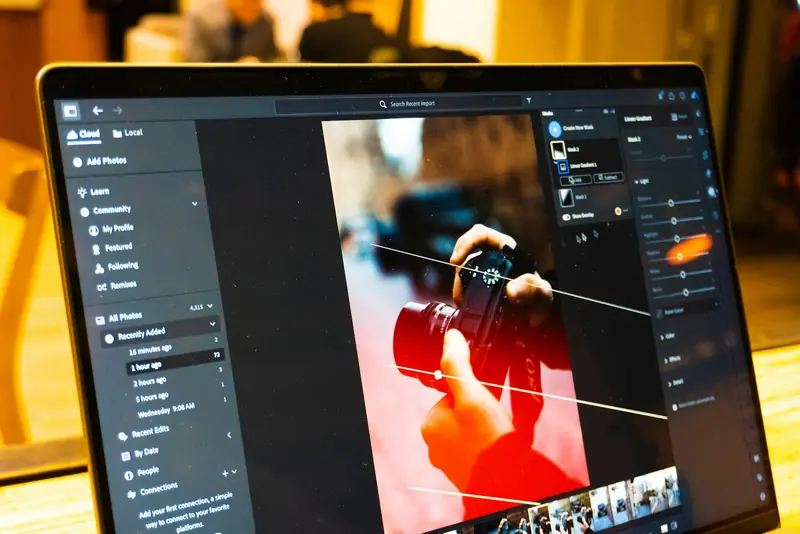
You've seen it on Instagram, TikTok, Pinterest: a photo where one color pops out, everything else is black and white. A red rose on a gray street. A blue car in a B&W city. A yellow flower in a monochrome landscape.
It's called the color splash effect (or selective color), and it immediately makes a photo stand out. It's dramatic, eye-catching, and looks professional.
EditMyStuff creates this effect in seconds: pick a color, adjust tolerance (how similar colors get kept), watch as everything else fades to B&W. No Photoshop. No layers. No masking. One click.
What Is Color Splash?
Color splash is a photo effect where:
- You choose a color (red, blue, green, purple, etc.)
- That color and similar shades stay vibrant
- Everything else → black & white
- Creates high contrast, dramatic effect
- Draws viewer's eye to that color
It's psychology: color in a B&W world = attention magnet.
Why Color Splash Works
Visual Impact — Color in B&W immediately stands out. Powerful composition.
Emotion — Creates drama, focus, mood. Turns ordinary photo into art.
Storytelling — The kept color becomes the story. "This red thing matters."
Trending — TikTok, Instagram, Pinterest love color splash. High engagement.
Simple but Effective — Looks professional, takes seconds to apply.
How to Create Color Splash: Step-by-Step
Step 1: Open EditMyStuff Go to editmystuff.in/image-editor.
Step 2: Upload Your Photo Pick a photo with a distinct color you want to highlight (red rose, blue car, yellow flower, orange sunset, etc.).
Step 3: Open Colour splash Click Colour splash (the rainbow icon) in the toolbar.
Step 4: Choose Your Color
- Tap one of the eight colour tiles under Keep this colour: Red, Orange, Yellow, Green, Teal, Blue, Purple or Pink
- Or drag the Hue slider to pick any shade in between
- Preview updates live
Step 5: Adjust Tolerance The Tolerance slider (0–180°) sets how far around the colour wheel the kept range reaches. It starts at 30°.
- Low tolerance (10–20°): only shades very close to your colour stay
- Medium tolerance (30–60°): similar shades stay too (e.g., red + crimson + some orange)
- High tolerance (90°+): a broad slice of the colour wheel stays
The Vibrance slider (0–200%) then makes the kept colour more or less intense.
Find the sweet spot where the color you want stays vibrant, rest becomes B&W.
Step 6: Preview & Refine See the effect live on canvas. Adjust color and tolerance until perfect.
Step 7: Apply & Export Click Done. Choose PNG, JPG or WebP under Export, then download.
The entire process takes 30 seconds.
Color Splash Ideas
Red Rose on Gray Street:
- Upload city street photo with flower
- Select red
- Red rose pops, street fades to B&W
- Romantic, eye-catching
Blue Car in B&W City:
- Upload street/parking photo with blue car
- Select blue
- Car stands out, everything else monochrome
- Automotive, striking
Yellow Flower on Green Grass:
- Upload landscape with flower
- Select yellow
- Flower glows, rest becomes B&W
- Nature, focus
Orange Sunset on Beach:
- Upload beach/sunset photo
- Select orange/warm tones
- Sunset/sky pops, rest B&W
- Dramatic, moody
Green Bottle on Shelf:
- Upload product/still life
- Select green
- Bottle stands out
- Product photography, clean
Purple Dress in Crowd:
- Upload portrait/crowd scene
- Select purple
- Person in dress pops, rest B&W
- Fashion, focus
Pink Neon Sign:
- Upload urban/night photo
- Select pink/neon
- Sign glows, rest monochrome
- Urban, trendy
Pro Tips
Choose High-Contrast Colors: Red, blue, green, orange, purple work best. Pastels less effective.
Match Photo Content: Pick a color that's already prominent in the photo (car color, clothing color, natural element). The effect works on hue across the whole photo, so every area of that colour stays: a blue car on a blue-sky day keeps the sky too.
Adjust Tolerance Carefully: Too low = only tiny area colored. Too high = too much colored (loses drama).
B&W Quality: The B&W conversion uses desaturation (natural, not harsh). Looks professional.
Multiple Colors (Future Feature): Currently: one color splash. Future: keep 2-3 colors, rest B&W (multi-splash).
Combine with Other Effects: Apply color splash, then add effects (bloom, vignette, grain) for more impact.
Common Questions
Q: Can I select multiple colors? A: Current version: one color. Future version will support multi-splash.
Q: Does it work on mobile? A: Yes. Full touch support. Tap color, adjust slider, see preview.
Q: Can I undo? A: Yes. Ctrl/Cmd+Z. All edits non-destructive until export.
Q: How do I choose the right tolerance? A: Start at the default 30°, preview, adjust up/down. Find the balance where your color pops, rest is B&W.
Q: Can I batch apply color splash? A: Yes. With several photos open, click Apply to all, then download them as a ZIP. All get the same color, tolerance and vibrance.
Q: What if the photo has multiple colors I want to keep? A: Use multi-splash (future). For now, pick the most important color.
Real Examples
Before: Green grass, red rose, green leaves all visible (normal photo).
After (Color Splash Red): Red rose vibrant, grass and leaves → B&W. Rose is the focus.
Before: A blue car parked on a red-brick street under a grey sky.
After (Color Splash Blue): Blue car vibrant, bricks and sky → B&W. Car stands out. (If the sky were blue too, it would stay blue: the effect keeps a colour everywhere it appears.)
Ready to Make Photos Pop?
Open EditMyStuff now and create color splash effects in seconds.
Or learn how to add text to images to complete your design.
Keep one colour vibrant and turn the rest black & white, free.
Everything runs in your browser. Nothing leaves your device.
Push it further with cinematic effects — read the guide.